Microsoft OneNote: Save Notes
Microsoft CorporationProductivity
4.653.68K Reviews
- Version
- 16.0.20228.20128
- Installs
- 1.00B
- Age Rating
- Everyone
Screenshots
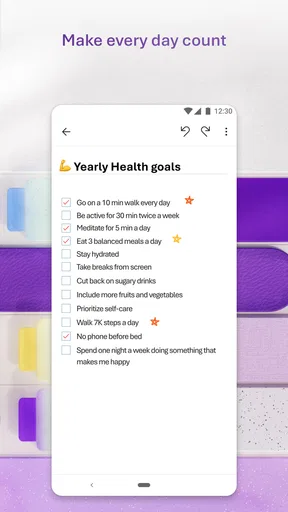
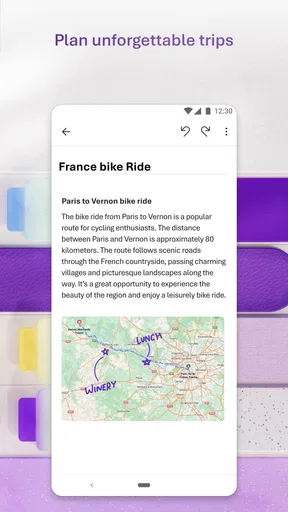
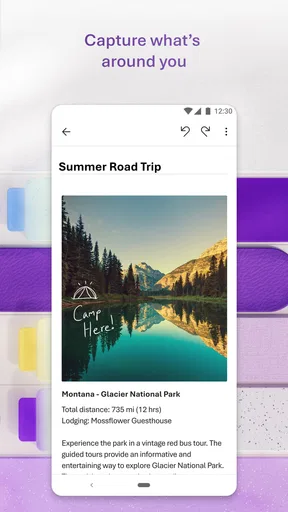
Our Review of Microsoft OneNote: Save Notes
 Analysis by Appyee
I judge a note-taking app less by how many things it can store than by whether I can find the right detail when I need it. That is where Microsoft OneNote: Save Notes makes its case: it gives quick thoughts, reference material, and longer-running plans a shared home without forcing them all into the same kind of note. I like that flexibility, though it works best when I give the app a little structure instead of treating it as an endless pile of pages.
Cost and the kind of value it offers
OneNote is free to download, so trying it does not require an upfront purchase. That makes it easy to test with a real project rather than deciding from a short setup session whether it suits you. Microsoft Corporation develops the app, and its scale is reflected in an average rating of 4.6 from around 1.5 million ratings, with over 1 billion installs. It is rated for Everyone.
That free access is useful, but I would separate it from the question of what the app is worth to you day to day. The strongest value is not simply that it can hold notes; it is that notebooks, sections, and pages can support several kinds of information in one place. If you already use Microsoft services, that shared working context may matter more than any single editing tool. If you only need a short grocery list, the depth may be more than you need.
The current version is 16.0.19929.20122, and the app has been available since February 7, 2012. Those details sit behind a familiar, established product rather than a brand-new experiment. I would still make my own decision based on how well its notebook layout fits my habits, not on its age or popularity alone.
Getting Started with OneNote
First things first, downloading and setting up Microsoft OneNote is a breeze. Whether you're on Android or iOS, you can grab it from the app store, and within minutes, you're ready to start jotting down your thoughts. The app syncs seamlessly with your Microsoft account, which means your notes are accessible across all your devices. No more emailing notes to yourself or losing track of where you saved that important to-do list!
The Interface: Intuitive and User-Friendly
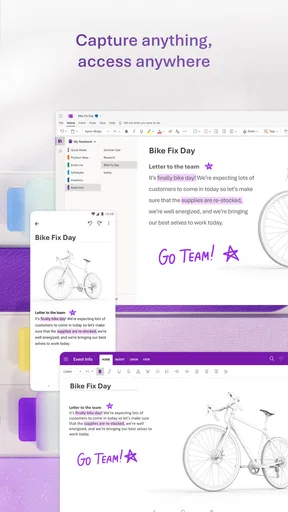
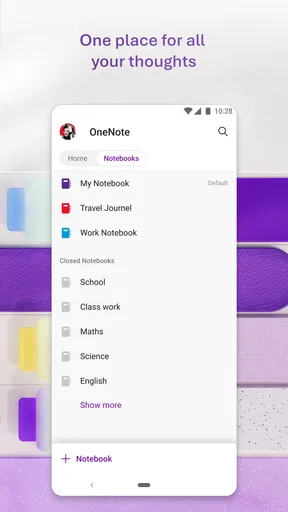
One of the first things I noticed about OneNote is its clean and intuitive interface. It's designed to mimic a traditional notebook, so if you're a fan of scribbling in the margins, you'll feel right at home. The app allows you to create multiple notebooks, each filled with sections and pages. This structure makes it super easy to keep your work, personal life, and hobbies neatly organized.
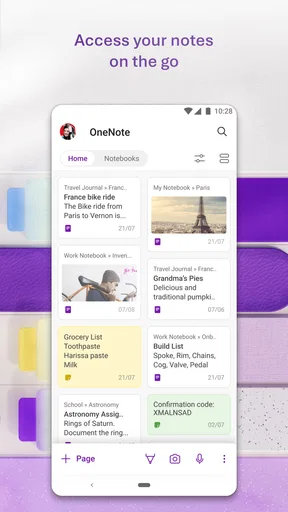
Adding content is as simple as tapping on the screen and typing away. You can insert images, drawings, and even audio recordings directly into your notes. This flexibility is perfect for those of us who think in more than just words. Plus, the ability to rearrange and edit your notes on the fly is something I appreciate immensely.
Features That Stand Out
Let's talk about some of the standout features of OneNote. The app's search functionality is incredibly powerful. You can search for keywords within your notes or even look for text in images, thanks to its OCR (Optical Character Recognition) capabilities. It's like having your own personal assistant who knows exactly where everything is.
Collaborating with others is another area where OneNote shines. You can share entire notebooks with colleagues, friends, or family, and everyone can edit in real time. It’s great for team projects or planning events with friends.
Another cool feature? You can tag your notes with to-do lists, important markers, or question flags. This makes it super easy to prioritize tasks and keep track of what needs your immediate attention.
A practical notebook routine that pays off
A useful way to start is to make one notebook for a real area of life, then create a small number of sections with clear names. For example, I might keep a home notebook with sections for repairs, meal ideas, and appointments. When I add a note, a searchable title such as “Boiler service questions” is more helpful later than a vague label like “Today.” Search can rescue a detail buried in a page, but it works best when I give it meaningful words to find.
For a busy day, I would use a page as a running record rather than scattering every thought across separate notes: add a meeting question, attach a photo of a whiteboard, and mark a follow-up with a task tag. Then I can return to that same page to see both the context and what still needs doing. This is a particularly useful trade-off in OneNote: its pages can hold mixed material, but a page with no title or organization can become harder to revisit than a simple checklist.
When capturing information from an image, I would keep the original picture alongside any extracted text. OCR can make words in an image searchable, which is handy for a photographed handout or a sign, but it is not a reason to discard the visual reference. For handwriting, I would also test recognition with my own writing before relying on converted text for anything important; handwriting styles vary, and a quick review can catch a misread name or number.
Features That Stand Out
Let's talk about some of the standout features of OneNote. The app's search functionality is incredibly powerful. You can search for keywords within your notes or even look for text in images, thanks to its OCR (Optical Character Recognition) capabilities. It's like having your own personal assistant who knows exactly where everything is.
Collaborating with others is another area where OneNote shines. You can share entire notebooks with colleagues, friends, or family, and everyone can edit in real time. It’s great for team projects or planning events with friends.
Another cool feature? You can tag your notes with to-do lists, important markers, or question flags. This makes it super easy to prioritize tasks and keep track of what needs your immediate attention.
Sharing without turning notes into noise
Sharing a notebook is most useful when the group needs a continuing reference, not just a one-time message. I can imagine using one for a household move: keep a page for measurements, another for tasks, and a place for photos or links that everyone involved can refer to. Before inviting others, I would decide what belongs in that shared space and keep private notes elsewhere. Sharing a whole notebook is broader than sending one isolated item, so the structure and audience deserve a moment of thought.
For a group plan, tags can help make the next action visible, but they do not replace a dedicated project-management tool when the work needs assigned owners, deadlines, or a formal progress view. I see OneNote as a flexible record of decisions and supporting material; for a team that needs a strict workflow, a purpose-built task tracker may be easier to manage. That distinction keeps the app useful without asking it to be something it is not.
Integration and Syncing
OneNote integrates smoothly with other Microsoft apps like Outlook and Teams, which is a boon if you're already entrenched in the Microsoft ecosystem. You can easily send emails to OneNote or attach meeting details directly to your notes. The syncing is pretty much instantaneous, so your notes are always up to date, no matter which device you’re using.
Even if you're not a Microsoft user, OneNote plays nice with other platforms. You can import content from other apps or export your notes in various formats, making it versatile enough to fit into any workflow.
What to expect across devices
For someone who moves between a phone and another device, having notes available through a Microsoft account is a practical advantage. I would still check that the right account is signed in and that the notebook I need has finished syncing before relying on it in a meeting or while travelling. A note-taking app is only dependable when the content is where I expect it, and an important detail deserves a quick check rather than an assumption.
The phone is especially convenient for quick capture: a thought, a photo, or a short audio note can be added while I am away from a desk. Longer editing and careful reorganization are usually more comfortable on a larger screen. If most of my work is typing long, polished documents, I would use a word processor for the final draft and keep OneNote for research, outlines, and reference material. It is a companion to that workflow, not necessarily a replacement for every writing tool.
Customizability and Personal Touches
OneNote offers a level of customizability that makes it feel truly personal. You can change the color of your notebooks, adjust page styles, and even add stickers to notes for a bit of fun. It allows you to create a space that feels uniquely yours, which is something I really enjoy.
For those who love handwriting, OneNote supports stylus input, so you can jot down notes just like you would on paper. The handwriting recognition is top-notch, converting your scribbles into text with surprising accuracy.
Where another kind of notes app may fit better
Compared with a basic notes app, OneNote has a more layered notebook-and-section approach. That is an advantage when I want a durable home for a class, a project, or a collection of references, but it can feel like extra setup for a single reminder. A quick-capture app or the built-in notes tool on a phone may be the better choice if speed and minimal navigation matter more than organizing a growing library.
It also differs from a conventional document editor. OneNote is comfortable with mixed content and informal pages, which suits brainstorming and meeting records. If I need a carefully formatted report, a strict outline, or a finished document to circulate, I would move that work into a dedicated editor. Choosing the right tool for the final output avoids fighting the flexible page style that makes OneNote useful in the first place.
There is a learning curve in deciding how much structure to use. Too many notebooks and sections make capture slower; too few can leave everything in a broad, cluttered space. I would begin with a simple hierarchy and only add a new section when I have a recurring reason to find that material separately. That small habit is more valuable than spending an afternoon designing an elaborate system I will not maintain.
Who is likely to get the most from it?
I would recommend OneNote to students who keep lecture notes alongside images or handwritten material, to people managing ongoing personal projects, and to Microsoft users who want their reference notes close to their usual work. It can also suit a family or small group that benefits from a shared notebook for plans and information. The common thread is not a particular profession; it is having material that accumulates and needs to remain findable.
I would skip it, or at least try a simpler alternative first, if I only wanted a handful of short reminders or if I disliked sorting information into notebooks and sections. Someone who needs a strict task board may also be happier in a dedicated project tool. OneNote can hold task-related notes and tags, but I would not choose it solely because I need a tightly managed schedule of work.
A realistic everyday use might be planning a weekend repair: I could save a photo of the part that needs replacing, type the measurements and questions for the hardware shop, then add a follow-up task after I check what is available. Later, search helps me retrieve the details without relying on memory. That is the kind of small, practical chain of capture and retrieval where the app earns its place.
Final Thoughts
After spending some quality time with Microsoft OneNote: Save Notes, I can confidently say it's a powerhouse of a note-taking app. Whether you're a student, professional, or just someone who loves keeping things organized, it's got something for everyone.
Its intuitive design, robust feature set, and seamless integration make it a standout choice in the crowded field of productivity apps. So, if you're looking for a reliable companion to capture your ideas and keep your life in order, give OneNote a try. Who knows? It might just become your new favorite app.
My buy-or-skip verdict
Because OneNote is free to download, I see little reason not to try it if a flexible notebook is what you need. The value comes from using its mixed-content pages, search, tags, and sharing in a routine that suits you—not from collecting features for their own sake. I would start with one active project and see whether finding and revisiting its notes feels natural.
My recommendation is strongest for people who want one organized place for information that grows over time, especially when they already work with Microsoft tools. For occasional lists, minimal note-taking, or tightly controlled project tracking, a simpler notes app or a dedicated task manager may be a better fit. If the notebook structure feels helpful rather than burdensome, OneNote is an easy app to keep using; if it makes every quick thought feel like administration, I would choose something lighter.
How Microsoft OneNote: Save Notes Compares
Full ComparisonChoose Google Keep for quick shared notes, OneNote for structured notebooks and collaboration, or Samsung Notes for handwriting and rich formatting on Samsung devices.
| App | Developer | Rating | Price |
|---|---|---|---|
 Google Keep - Notes and lists | Google LLC | 4.7 | Free |
 Microsoft OneNote: Save NotesThis App | Microsoft Corporation | 4.6 | Free |
 Samsung Notes | Samsung Electronics Co., Ltd. | 4.8 | Free |
Verdict
Strengths of Microsoft OneNote: Save Notes
- Seamless integration with other Microsoft apps.
- Supports various input types: text, audio, image.
- Real-time collaboration with team members.
- Cross-platform syncing for easy access.
- Customizable organization with tags and sections.
Limitations of Microsoft OneNote: Save Notes
- Requires Microsoft account for full features.
- Limited offline capabilities without setup.
- Large file attachments can slow performance.
- Complex interface for first-time users.
- Some features hidden behind premium paywall.
Other Releases by Microsoft Corporation
View All
Microsoft OneDrive
Productivity4.6

Link to Windows
Productivity4.0

Microsoft PowerPoint
Productivity4.8

Microsoft Outlook
Productivity4.3
Similar Picks in This Category
View All
Google Calendar
Google LLC4.6

Google Drive
Google LLC4.3

Google Assistant
Google LLC3.9
Microsoft OneDrive
Microsoft Corporation4.6

Samsung Calendar
Samsung Electronics Co., Ltd.4.1

HP Print Service Plugin
HP Inc.4.1
Frequently Asked Questions
What platforms is Microsoft OneNote available on?
Microsoft OneNote is available on various platforms, including Android, iOS, Windows, and macOS. This cross-platform availability ensures that users can access their notes from almost any device, whether it's a smartphone, tablet, or computer, making it a versatile tool for both personal and professional use.
Is Microsoft OneNote free to use?
Yes, Microsoft OneNote offers a free version with essential note-taking features suitable for most users. However, there is also a premium version available with a Microsoft 365 subscription, which provides additional features like more storage and advanced collaboration tools, enhancing the overall user experience.
Can I share notes with others using OneNote?
Absolutely. Microsoft OneNote allows users to share their notes and notebooks with others, making collaboration easy. You can invite others to view or edit your notes, enabling team projects or collaborative study sessions. This is especially useful in educational and professional settings where teamwork is essential.
Does OneNote work offline?
Yes, Microsoft OneNote can be used offline. Any changes or new notes you create will be saved locally and automatically synced across devices once you reconnect to the internet. This feature ensures that you can continue working on your notes even without a stable internet connection.
How secure is Microsoft OneNote?
Microsoft OneNote provides a secure environment for storing notes. It uses encryption to protect your data and offers user authentication to ensure that only authorized individuals can access your notes. Additionally, OneNote integrates with Microsoft’s robust security infrastructure, offering peace of mind for users concerned about privacy.
